July 2026:

Early this year we were hired to put together an opening video for a client with a very fast turnaround.  For the time we had, I was really impressed with what just a couple of us were able to put together.  

But after we were done, we wondered – with more time, what could we have done to make this better?  We learned a ton in the process of pushing this further, so I figured I’d pass the info along in case it’s helpful to others.

IN CINEMA 4D

  • ADJUSTING THE PROJECT TO ACES

    • We’d recently done visual effects for a film, which required us to get more familiar with the ACES pipeline so we decided to do that here as well.  Be forewarned though, it will make your After Effects workflow more complicated which I’ll go describe below.  I also can’t say whether ACES in and of itself was what made the biggest difference, or the specific LUT we chose (which is built for ACES), or it was just the ability to do greater color adjustments in post, but the ultimate adjusted look was significantly improved.  

    • Project settings 

      • set render space to ACEScg, 

      • view transform ACES 1.0 SDR video

      • Display- Srgb

    • Textures 

      • For every material that uses an image texture node, you need to explicitly tell Redshift what color space every image texture node is, so that ACES interprets it correctly.  You’ll need to click on the individual texture node and set the color space there.

        • If your asset is for color data (diffuse / albedo color, specular/reflection color, dome light texture/backplate)…

          • If you already know what the correct color space is set it to that

          • If it's a JPG / PNG / BMP etc set it to sRGB

          • If it's an EXR / HDR etc set it to scene-linear Rec.709-sRGB or other appropriate scene-linear color space

      • If your asset is for non-color data (normal, roughness, metalness, displacement, bump)…

        • If you already know what the correct color space is set it to that

        • Otherwise set it to RAW


  • Save Settings

    • You’ll want to make sure you’re saving your files to EXR to give you the greatest control on the color later in AE.  

    • Set your Regular Image/Save/Format to…

      • EXR

      • Depth = 32 bit

      • Dropdown Format Options

        • Check "use 16 bit floats"

        • Set compression to DWAB (You can explore other compression settings but I tend to use this one.)

      • Image color profile should be ACEScg (unless it's automatically greyed out which is ok)

    • Set AOVS

      • Enabled

      • Multi-part EXR checked (if you want)

      • Depth = Half Float 16 bits

      • Compression DWAB

      • (note: if you want or need 32 bit AOVs, as it may give more data to a z pass for example, you can set the depth to 32 and then within the AOV manager you can set individual passes (like beauty) back down to 16-bit since you don't need that extra data)


  • CAMERA SETTINGS

    • Filmic 

      • Though you probably can get away with EV mode on the camera, one argument for using Filmic is that it’ll force you to think about realistic camera settings vs just dialing in the depth of field you want and calling it good.  Instead, while it takes a few extra steps, you should ask yourself what F-stops would be reasonable given the lighting in a scene like this?  How many stops realistically up or down might a camera be physically capable of going?  You might find that it doesn’t have the depth-of-field you think you should be getting so it forces you to think like a real cinematographer (should we add more light? Reduce the light? Change the lens? Etc)

    • Bokeh

      • Use a bokeh image (this will make your bokeh a little more realistic)

      • Spherical aberration to 0, aspect to 1, normalization sum to white

    • Aperture 

      • Set based on the kind of scene you have (see my notes above related to the filmic camera)

    • Motion Blur 

      • Movie

      • Shutter angle = 180 (This would be the normal setting on a camera, but you can lower it if you want less blur and a more staccato/Saving-Private-Ryan feel)

      • (Make sure motion blur is enabled in "render settings")

      • Like with flares, you certainly can toss on RSMB in post to add motion blur. But RSMB (at least the non-“pro” version) will struggle with things that move really really fast, which things do in this sample. (A good example of this issue is if you’ve ever tried to apply RSMB to a fast moving particle sim like rain.  You’ll see that it doesn’t apply the appropriate blur to most of the droplets.  My understanding is that what’s happening is that it can’t tell if this object came all the way across the screen or just appeared out of nowhere and so it doesn’t appropriately apply the blur.) As a result, I’ve been getting into the habit of baking my motion blur into my Cinema render.

    • Color Correct

      • Leave this untouched

    • Lens Effects

      • Bloom: Leave the bloom off because we can do this easily in AE

      • Flares: Though I know you can do it in post as well, there’s a lot of cases where I get better results baking my flares into my scene.  Within Cinema, the render engine takes into account when objects occlude a light source, which is more complicated to achieve in AE. Plus it can handle flares coming from lots and lots of light sources simultaneously which can get pretty complicated in AE if you’ve got tons of lights.

  • ENVIRONMENT

    • Add in RS Environment

      • This is an of itself went a long way to improving the scene.  Just having that slight amount of things-in-the-distance-fading-off really helped.  And this is one place where Redshift I find to be much easier than Octane. Octane’s fog volumes historically made my render suuuuuper slow; here in Redshift I found it was only a marginal render hit. (Though as I recall when I tried a full-on VDB the render hit was more significant.)

      • Set anisotropy to .6 or .7 (Apparently 0 scatters light in all directions like thick fog if that’s what you want. Real world dust, smog have “forward scattering” which blooms stuff facing towards the camera.)

      • Scattering can be set to eye but might try something small like 0.001

      • Height is confusing, though I believe this is actually how high the fog goes, not how high it starts. Try something like 200 in.


IN AFTER EFFECTS

  • PROJECT SETTINGS

    • AE ACES PROJECT SETTINGS

      • Think of ACES as a sort of universal translator that can speak any language and translate between them.  It allows all these different languages (something from Cinema, something from the internet, something from a camera) to get put together in a way that they can speak to each other.  

      • Color Engine -- OCIO color managed

      • OCIO Config -- ACES 1.3 Studio (or the latest)

      • Bit Depth -- 32 Bit (allows for full color depth)

      • 3D LUT -- Tetrahedral (allows for full color depth)

      • Working Color Space -- ACES/ACEScg

      • Display Color Space: This is determined by the monitor your using while you work. Continuing with the language metaphor, this is asking what language your monitor speaks. As far as I understand…

        • sRGB is standard on most laptops

        • Computer monitors vary between sRGB and rec 709 (rec 709 being usually for fancier monitors and some you can choose between the two)

  • IMPORTING/EXPORTING

    • Everything that you bring in needs to have an interpretation applied to it. Think of this as telling ACES what language the file is in originally.

      • All footage that's imported needs to have its input color space interpreted to look correct. For shot footage you need to know what camera was being used to shoot it and apply that color space to the footage; for images and footage you download online you can usually do sRGB-Display/ACES 1.0-SDR Video; for things you’re exporting out of Cinema you can do ACEScg since that’s how you set your project

    • For anything you're sending to a client, you want to set this to whatever their monitor (and therefore display color space) is. (i.e. What "language" does your client's monitor speak?)

      • If your client has a Rec 709 monitor: (Rec.1886 Rec.709 - Display/ACES 1.0 - SDR Video)

      • If your client has a laptop or SRGB Monitor (sRGB - Display/ACES 1.0 - SDR Video)

        • IMPORTANT: you might need to click "show all" to see some of these options

  • FILM GRAIN

    • This and the following effects are listed in the order (top to bottom) that I placed them in my comp)

    • Dig up some actual film noise (ideall shot on a gray background), place it on top of the comp, and set to overlay.

  • LUT APPLICATION

    •  Make an adjustment layer and add the following effects in the same (top to bottom) order

    • OCIO Color Space Input ACEScg/Output ACEScct

      • You do this because the LUT we’re using is specifically built for ACEScct and this translates it into the language the LUT wants

    • Lumetri

      • You can do any additional color correction you want here (it's best to do this before it hits the LUT)

        • One thing I’ll mention that I think helped a lot here was, surprisingly, was reducing contrast.  For the longest time I’ve been increasing saturation and contrast to make things really pop.  But I found that if I was trying to up the photorealism, reducing the contrast made a major difference.  Raising the black/shadow values up, pushing the white/highlights down, dropping the saturation slightly, and reducing that contrast.

    • OCIO File Transform

      • Grab the ACES CCT 2383 LUT from JVKE (Jake Pierrelee)

      • This applies his LUT

    • OCIO Color Space  Input ACEScct/Output ACEScg

      • This basically takes everything and turns it back to ACEScg so it looks right in the comp

  • LENS DIRT

    • You can just drop lens dirt on in a pinch but the better method is to isolate it to just the parts of the image that are brightest

      • Duplicate your footage, make black and white, curves it hard so it's mostly bright white and dark gray/black. Add fast blur so it's not hard edged and use that as a luma matte for your lens dirt

  • HALATION/OPTICAL GLOW

    • Apply optical glow to an adjustment layer

    • Set footage to Linear

    • Highlights only 90-95%

    • Highlight rollof 20%

    • Red Size 175%

    • Amount and size adjust to eye, but maybe 5-10

    • NOTE: be careful with this it can sometimes blow things out a little too much. If at any point you have something get so bright that it starts to actually turn crunchy and black, try adding on the highlight compression effect.

  • LENS DISTORTION

    • Add and adjustment Layer with Optics Compensation

    • Enable reverse lens

    • FOV 8

  • CHROMATIC ABERRATION

    • You can throw on magic bullet Looks in a pinch and apply chromatic aberration that way, or there may be another easy/good plugin you can use but you might get a little more control using this more complicated method below.

    • Duplicate your footage 3 times

    • Top layer = Red

      • Shift channels

        • Alpha = alpha

        • Red from red

        • Everything else off

      • Optics compensation

        • FOV 2

        • Reverse lens ENABLED

      • Fast box blur.5

      • Set layer to screen

    • Second Layer = Blue

      • Shift channels

        • Alpha = alpha

        • blue from blue

        • Everything else off

      • Optics compensation

        • FOV 2

        • Reverse lens DISABLED

      • Fast box blur.5

      • Set layer to screen

    • Third Layer = Green

      • Shift channels

        • Alpha = alpha

        • green from green

        • Everything else off

      • No blur or optics compensation

    • (Apparently this considers the fact that red and blue actually behave differently than green which is why we affect those but not green)

AI

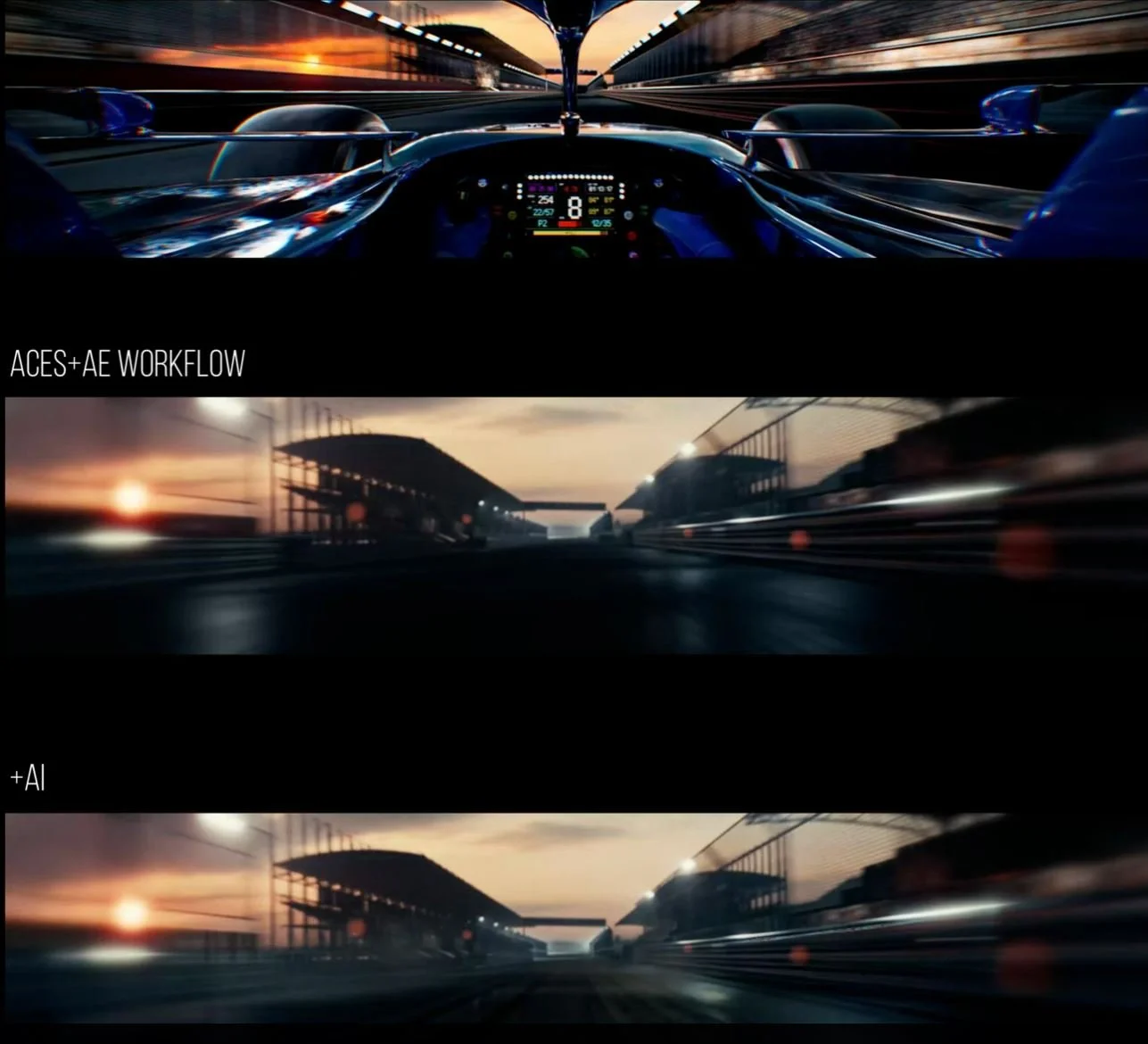
  • As a final touch we composited in some things like dust clouds coming off the tires and used AI to improve the texture on the track with more tire tracks etc. The workflow was primarily, export a still from After Effects, outpaint to 16:9 using photoshop, NanoBanana to adjust the look of the scene, then pipe the original video plus the adjusted look into Runway Aleph or Seeddance.  With our wide aspect ratio Veo 3/Omni, Kling, etc struggled to correctly apply the motion from the original footage, but Runway and Seeddance were pretty good at it. 

  • We tried to see if we could get AI to generate mattes of just the dust or just specular highlights on the road that could be easily composited after the fact – mostly it didn’t give us something usable, but occasionally it did. More often than not we just pulled in the revised footage from Runway, masked out just the areas with the compositing elements we wanted, set them to a blending mode, made whatever adjustments to it were necessary to get it to composite nicely, then hand keyframed the mask.  Then, because Runway was only pretty good about matching the motion, but not perfect, it often required some hand keyframing of the Runway footage to get it to position correctly over the footage.